Image flashing
Copyright © Quectel Wireless Solutions Co., Ltd. 2026. All rights reserved.
Before flashing images for Quectel Pi H1, please ensure that the Qualcomm_USB_Driver_v1.0.10065.1 driver has been installed. If not installed, you can click here to download and install the driver.
Use QDL flash software
Ensure ModemManager tool is not running
Prerequisite: If you are using Linux distribution systemd, some Linux distributions may include the ModemManager tool, which allows configuration of mobile broadband. When a device is connected in USB mode, it will be recognized as a Qualcomm modem, and ModemManager will attempt to configure the device. Since this interferes with QDL flashing, ModemManager must be disabled before connecting the device. Please use the following command to disable the ModemManager tool:
sudo systemctl stop ModemManager
Flash image
Open EMG_DOWNLOAD and power on the module. The module will enter QDL emergency download mode.
Linux x64
Windows x64
Download QDL Tool:Click to download for Linux x64
Extract the QDL_Linux_x64 archive, and open a terminal window in the directory containing the firmware, rawprogram.xml, patch.xml, and QDL binary files.
Use the following command to run the QDL executable file in the QDL_Linux_x64 directory to perform software flashing.
./qdl --storage ufs prog_firehose_Qcm6490_ddr.elf rawprogram*.xml patch*.xml
If you see “partition 1 is now bootable” in the terminal window, it indicates successful flashing, as shown in the following message:
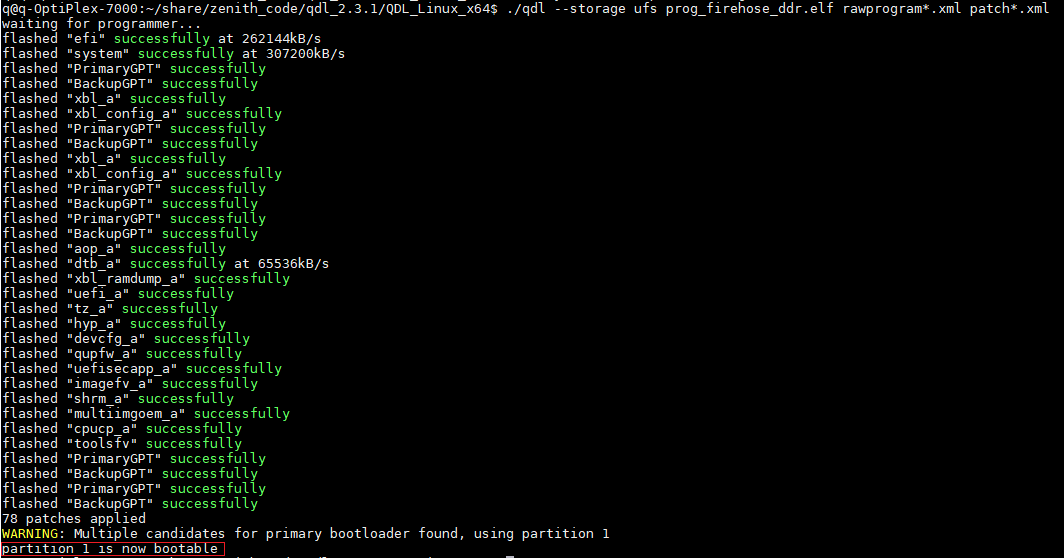
After successful flashing, running the lsusb command will show device information in the terminal window, as shown in the following information:

Note
If flashing fails, please perform the following steps and retry the flashing process:
Turn off the device power.
Disconnect from Quectel Pi H1.
Restart Quectel Pi H1.
QFIL image flashing
If you have QFIL flashing software installed on your computer, you can use it to flash images.
Configure QFIL
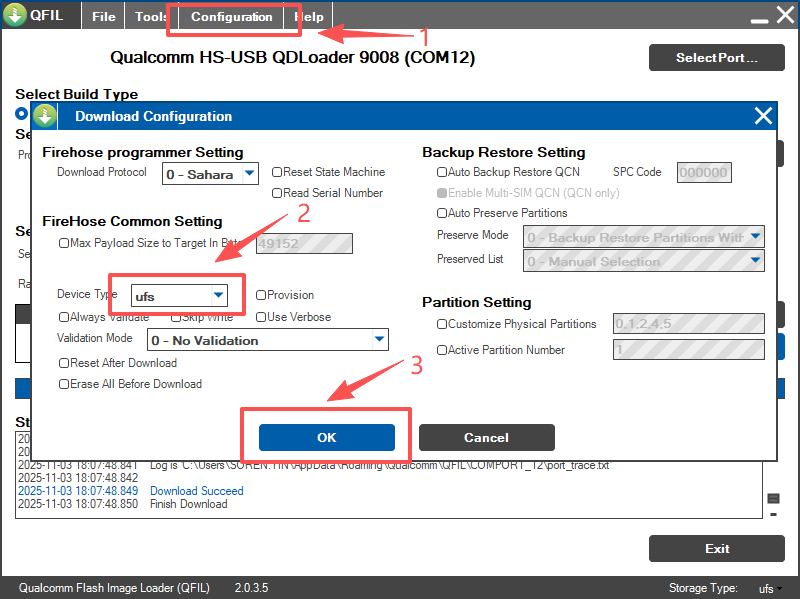
Click the menu bar Tools → Configuration, and make the following settings in the configuration window:
In Device Type, select
ufs.In Validation Mode, select
0 - No Validation.Click OK to save the configuration.
Flashing steps
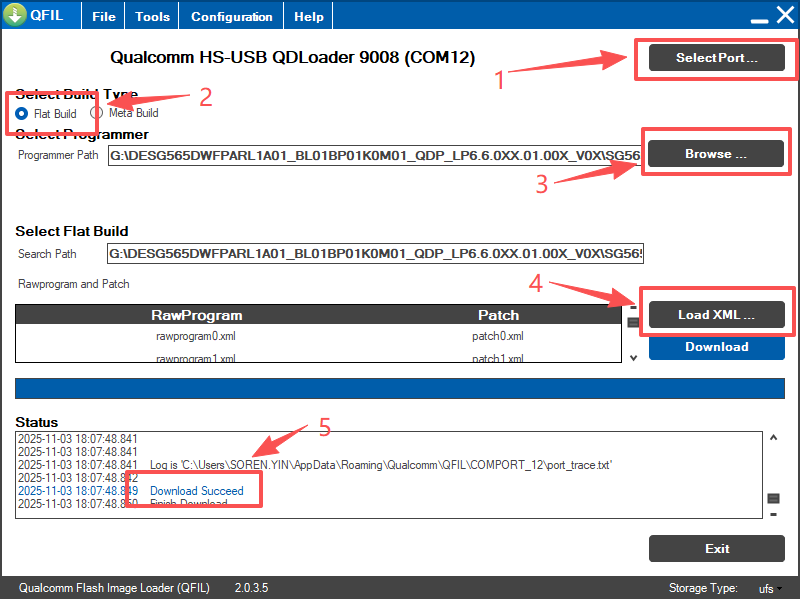
Select port
Long press the EMG_DOWNLOAD button on Quectel Pi H1 and power Quectel Pi H1 on at the same time.
Click the SelectPort button, select the 9008 port, and click OK.
Select build type
In Select Build Type, select
Flat Build.
Select programmer file
Click the Browse button.
Select the
prog_firehose_Qcm6490_ddr.elffile.
Load XML configuration files
Click the Load XML button.
Select all
rawprogram*.xmlandpatch*.xmlfiles.
Start flashing
Click the Download button to start flashing.
When the Status area displays Download Succeed, it indicates successful flashing.
The system will automatically restart.